Getting Started with Symbol Creator AI
| Site: | Global Symbols Training |
| Course: | Symbol Creator AI |
| Book: | Getting Started with Symbol Creator AI |
| Printed by: | Guest user |
| Date: | Friday, 23 October 2026, 4:54 AM |
Description
This book contains a full set of instructions for making the most of Symbol Creator AI.
1. What is Global Symbols Creator AI?
Symbol Creator AI is a powerful tool that helps you generate AAC-ready symbols. It is available both as:
- A feature of Board Builder, allowing you to quickly generate and insert custom symbols into your boards.
- A separate tool that allows you to create custom symbols for download or adding to existing symbol libraries.
2. Getting Started
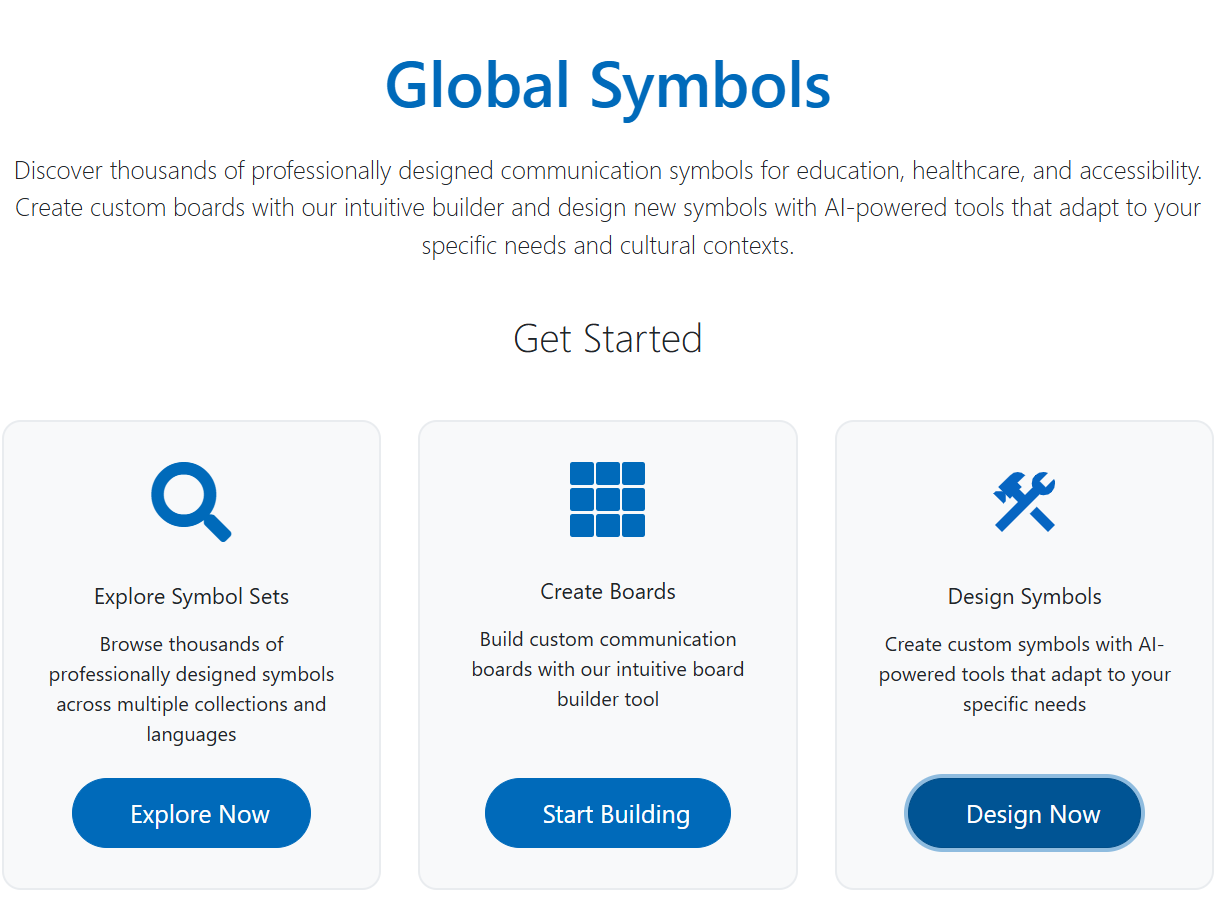
From the home page choose either:
- Create boards if you would like to add symbols to new or existing boards.
- Design symbols if you’d like to create a symbol to download.
In this training we’re going to use the Design symbols option, but will point out any differences that you’ll need to know if making boards.
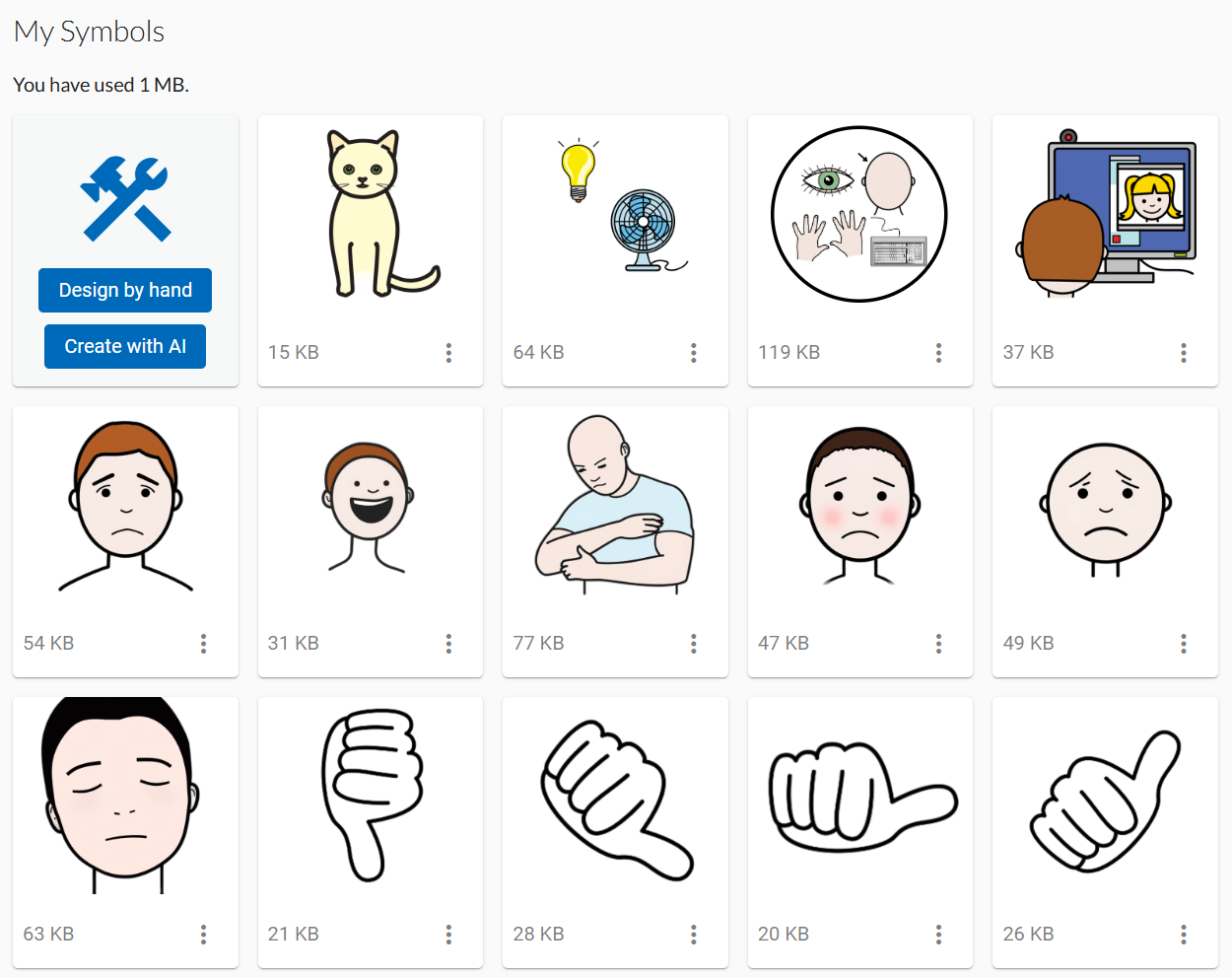
After clicking on Design symbols you should be presented with the My Symbols page. If you’ve previously created symbols you should see them here.
Choose Create with AI to get started with Symbol Creator AI.
3. Write your prompt
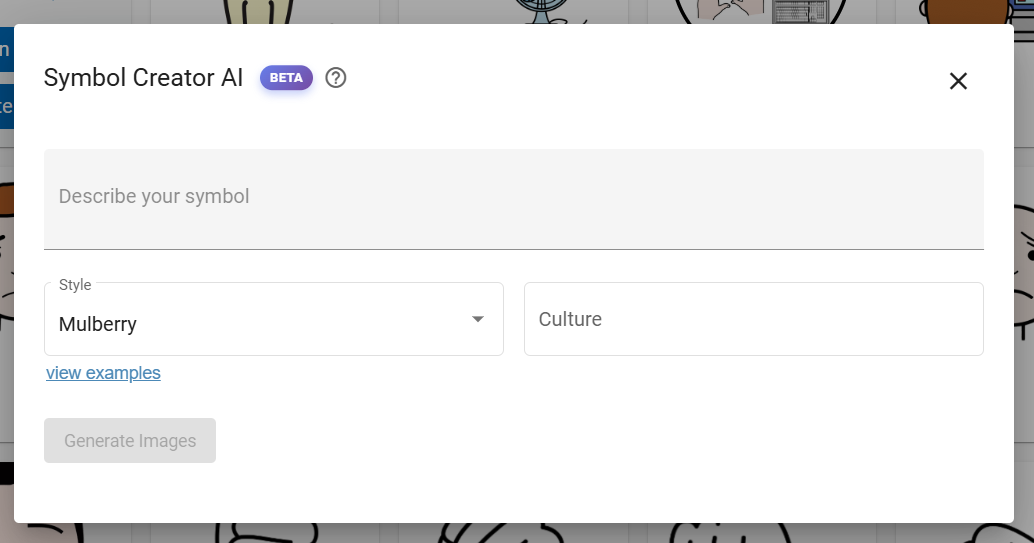
Symbol Creator AI works by interpreting your text prompt. The prompt describes the symbol that you would like generated.
Prompt writing matters. The clearer the prompt, the more likely you are to get a useful result.
What makes a good prompt?
Start with the symbol name, then add only the details needed to draw it clearly.
- Say what you want to see first
- Use plain, natural language
- Describe visible details
- Keep it short, but specific
Prompts can include:
- an action
- a person
- an object
You do not need all three in every prompt.
Example prompts:
- red apple
- boy drinking from cup
- woman waving hello
- wheelchair next to table
- dog sleeping on bed
The next book in this course goes into more depth to help you create great symbols using Symbol Creator AI.
Try writing a prompt now - don’t hit Generate images yet!
4. Choose a style
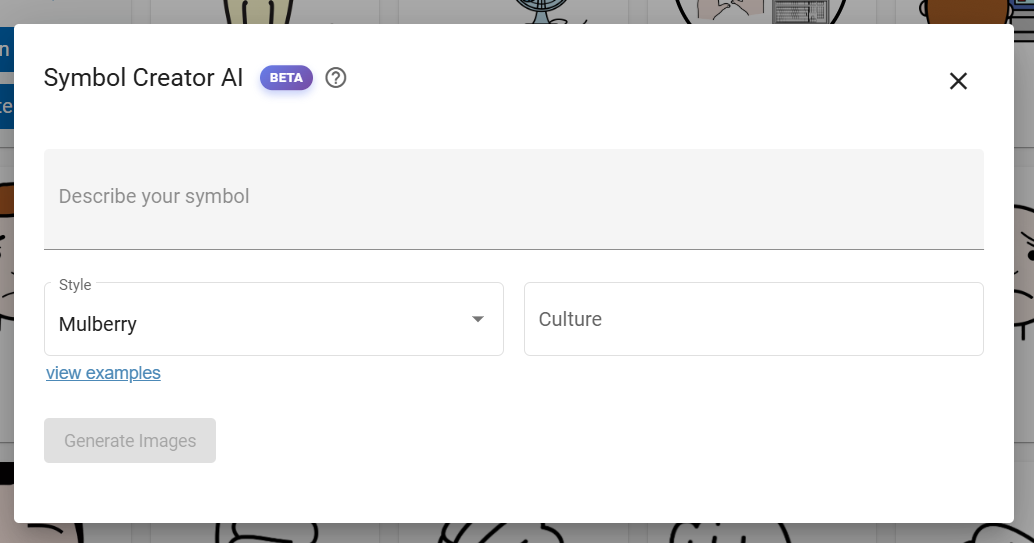
Using a consistent style for all your symbols helps people to understand them more quickly, particularly when using boards for communication. We have a range of styles to match existing open-source symbol set, including:
- Arassac
- Mulberry
- Dyvogra
- Jellow
You can select view examples if you would like to see the existing symbols using those styles.
These will create symbols using styles that match thousands of existing symbols that are available on our website, including through Board Builder.
Global Symbols will continue to add more styles in the future.
Select a symbol set from the drop-down list below your text prompt.
Tip: If your symbols are not appearing as you would like it is worth trying alternative styles, even if they do not fit the style of your other symbols.
5. Cultural Representation
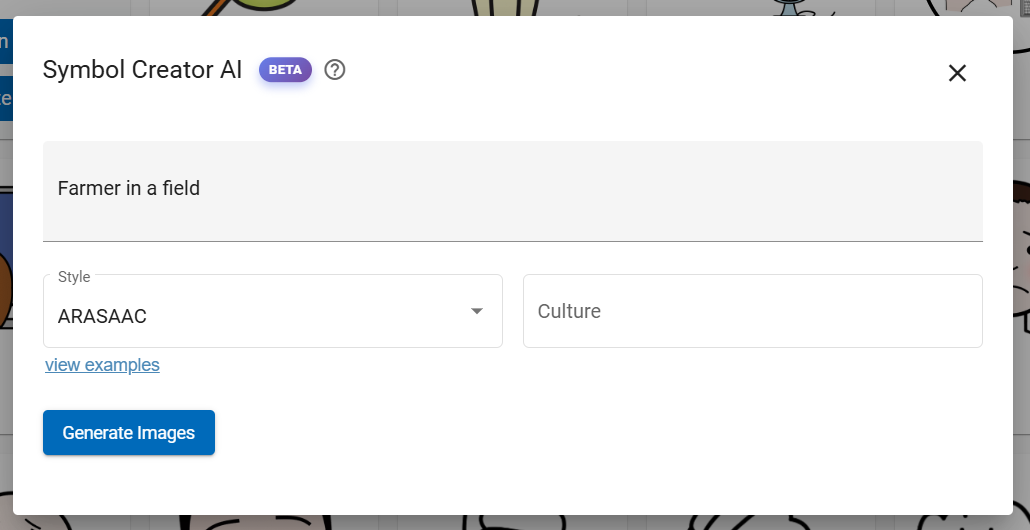
Using symbols representative of a person’s culture and community is important because symbols should feel familiar and meaningful. Prompts can include details such as skin tone, clothing, food, hairstyles, or everyday objects when these are important to the person’s life.
You can add cultural cues by typing adding a one-word prompt into Culture box.
Examples might include:
- Laos
- Tokyo
- Latin America
Tip: Use English language for best results.
6. Generating Images
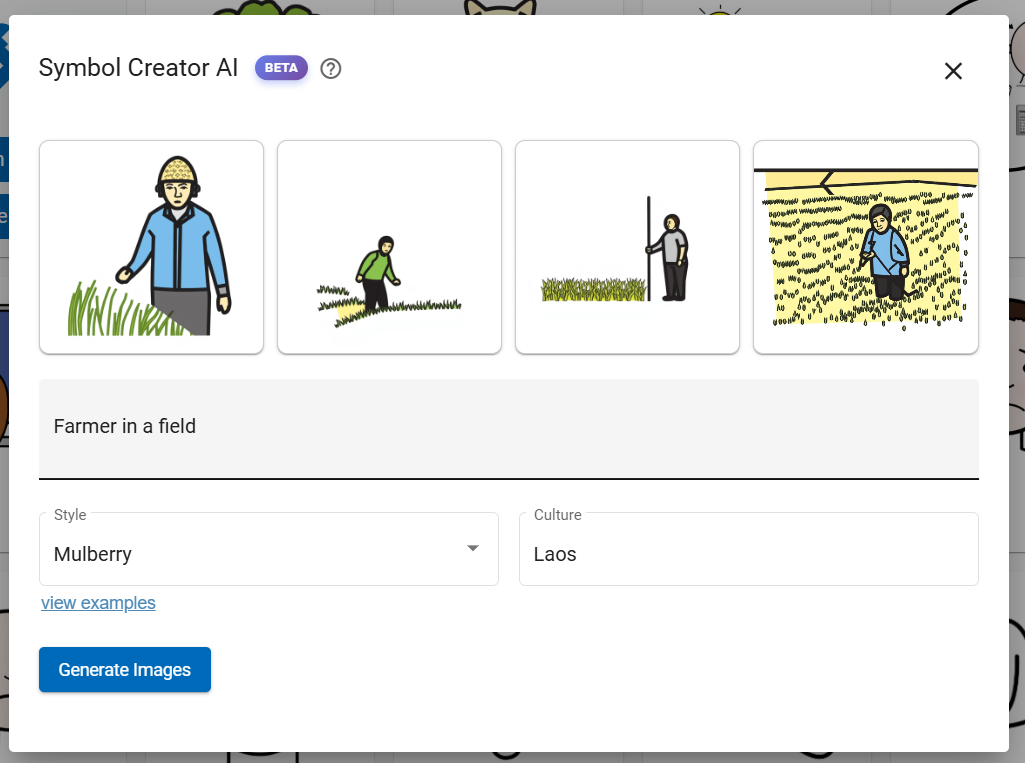
Now you’ve entered your prompt and culture you can choose Generate Images.
When our servers are busy you may be asked to wait for a few seconds.
Four options will appear.
If none of the symbols seem right then try pressing Generate Images again. You can also try rewording the prompt. You can take as many attempts as you like.
Tip: Adding “white background” to the prompt text can help if the AI model has drawn in a background.
Select the symbol that best suits your needs.
7. Rating Selected Symbols
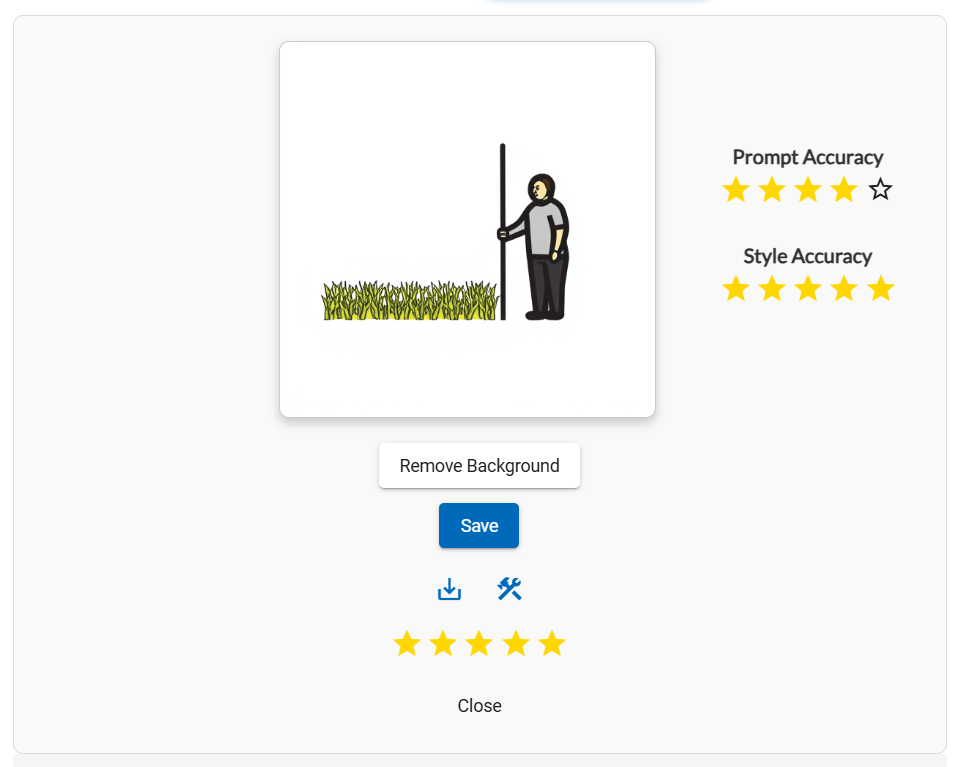
Rating symbols is optional but it helps us improve the model, which means everybody will get better symbols in future.
Rate the symbol from 1 to 5 stars based on your first impression.
You’ll then be offered the chance to rate it again based on:
- Prompt accuracy - How well does the symbol match the prompt you used to describe it? Remember to consider the cultural aspect.
- Style accuracy - How well does it match the chosen style - does it look like the other symbols in the symbol set?
Feedback is anonymous.
8. Saving and editing
Most symbols should be transparent, allowing you to add them on boards or other materials that have consistent or custom background colours.
Choose Remove Background to try removing the background. If the background does not remove fully, or takes out important features, then choose Undo Remove Background - it is possible to use other tools such as remove.bg to remove the background later on.
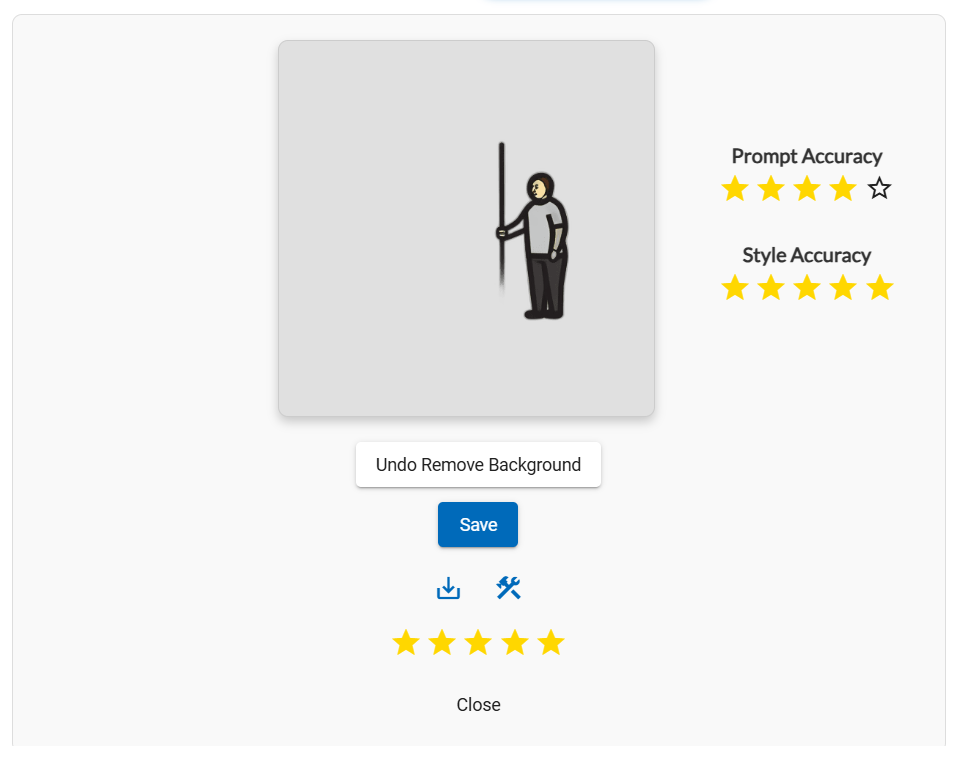
In this example the Remove Background option has removed the field in the foreground.
If you want to edit the symbol manually then choose the Send to Designer icon. This allows you to draw shapes and arrows, resize the symbol, and even add existing symbols from our symbol sets or your My Symbols collection.
Choosing Save will save the symbol to your My Symbols collection.
You can also choose the Save to Device icon to directly download the symbol to your device. You can always later download individual symbols from your My Symbols collection.
9. Troubleshooting
If something is not working well, try:
- Choosing Generate Images again
- Rephrasing the prompt
- Changing styles
- Refreshing the page
- Checking your internet connection
You can also contact us for assistance and we’ll get back to you.
10. Demo Video
This video shows the practicality of good prompting to create a symbol that doesn't rely on additional cultural definitions.